1. How to Connect Accounts
Let’s learn how to connect your Jom eInvoice and Cloudbeds accounts, in order to sync your Cloudbed bookings for e-invoicing.
There are 2 ways to do this
-
Via Jom eInvoice workspace
-
Via Cloudbeds account
Via Jom eInvoice
🔴 If you have not created your workspace, please do this guide first
6. Create WorkspaceStep 1: On your homepage, click Integrations

Step 2: ClickBrowse Integrations and you will see the list of apps
Step 3: Click View Details on Cloudbeds
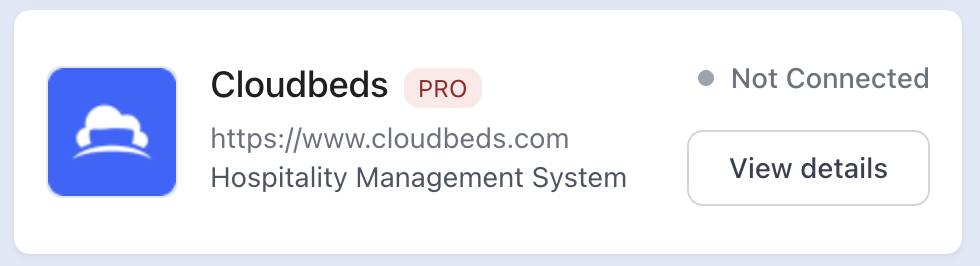
Step 4: On the popup, select to connect via Cloudbeds’ Server 1 or 2
-
Refer to your Cloudbeds’ account URL
Step 5: Click Continue to authorise the connection
Step 6: Ensure that all permissions are ticked, then scroll all the way down to click Allow Access
Step 7: Select your Jom eInvoice workspace that you’d like to connect Cloudbeds with
Step 8: Once the connection is successful, you will be redirected back to your Jom eInvoice homepage. Click Integrations again
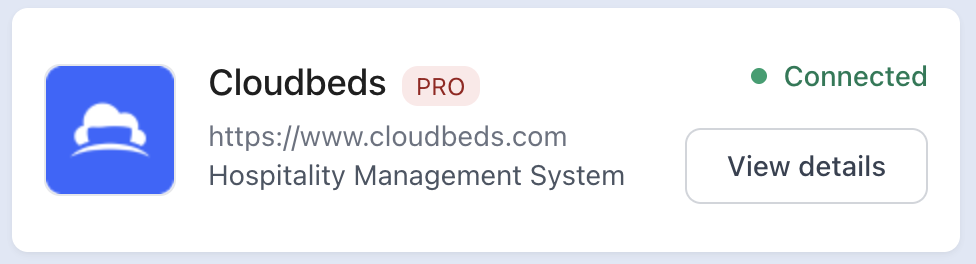
Step 9: You can now see that the Cloudbeds status is updated to Connected!
Via Cloudbeds
Step 1: Go to your Account and click Apps & Marketplace
Step 2: Search our app by typing Jom einvoice in the search bar. Click Learn more under our app
Step 3: Click Connect App and you will be redirected to Jom eInvoice website
Step 4: Click Continue to authorise the connection
Step 5: Ensure that all permissions are ticked, then scroll all the way down to click Allow Access
Step 6: Select your Jom eInvoice workspace that you’d like to connect Cloudbeds with
Step 7: Once the connection is successful, you will see our app under Connected Apps
Next process ⬇️
You have successfully connected your Jom eInvoice and Cloudbeds accounts! Next, let’s learn how to create invoice and credit note via Cloudbeds
2. How to Create Invoice 3. How to Create Credit Note