3. Create Credit Note via Cloudbeds 🔄 Jom e-Invoice
Let’s learn how to create credit notes from your Cloudbeds account, which will then sync automatically to your Jom eInvoice workspace
How to Create Credit Note via Cloudbeds
Step 1: On your Cloudbeds account, go to Reservations
Step 2: Click on your desired reservation
Step 3: Click on Documents
Step 4: Find the relevant invoice and click the three dots menu
Step 5: Click Void and issue Credit Note and you’re done!

How to View Credit Note on Jom eInvoice
Step 1: On your homepage, go to Sales → Credit Notes

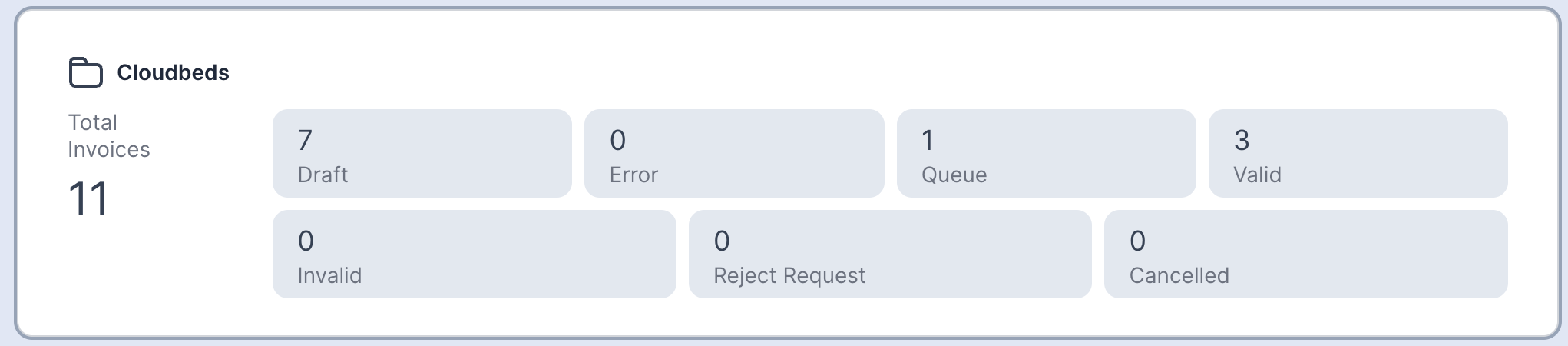
Step 2: Click on Cloudbeds channel
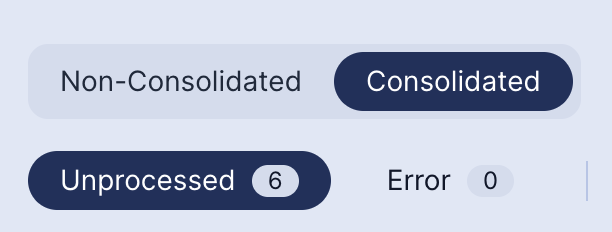
Step 3: Change the view to Consolidated and Unprocessed
Step 4: Find your reservation number (under Invoice number) and click View
Next process ⬇️
You have successfully created a credit note from your Cloudbeds to Jom eInvoice! Next, let’s learn how to consolidate them in order to submit to LHDN
Consolidate Invoices