7. How your customer can request e-Invoice

Learn how your customer can request for e-invoice.

There are 3 options:
1. Via QR standee at your business premises
2. Share Profile link to your customer

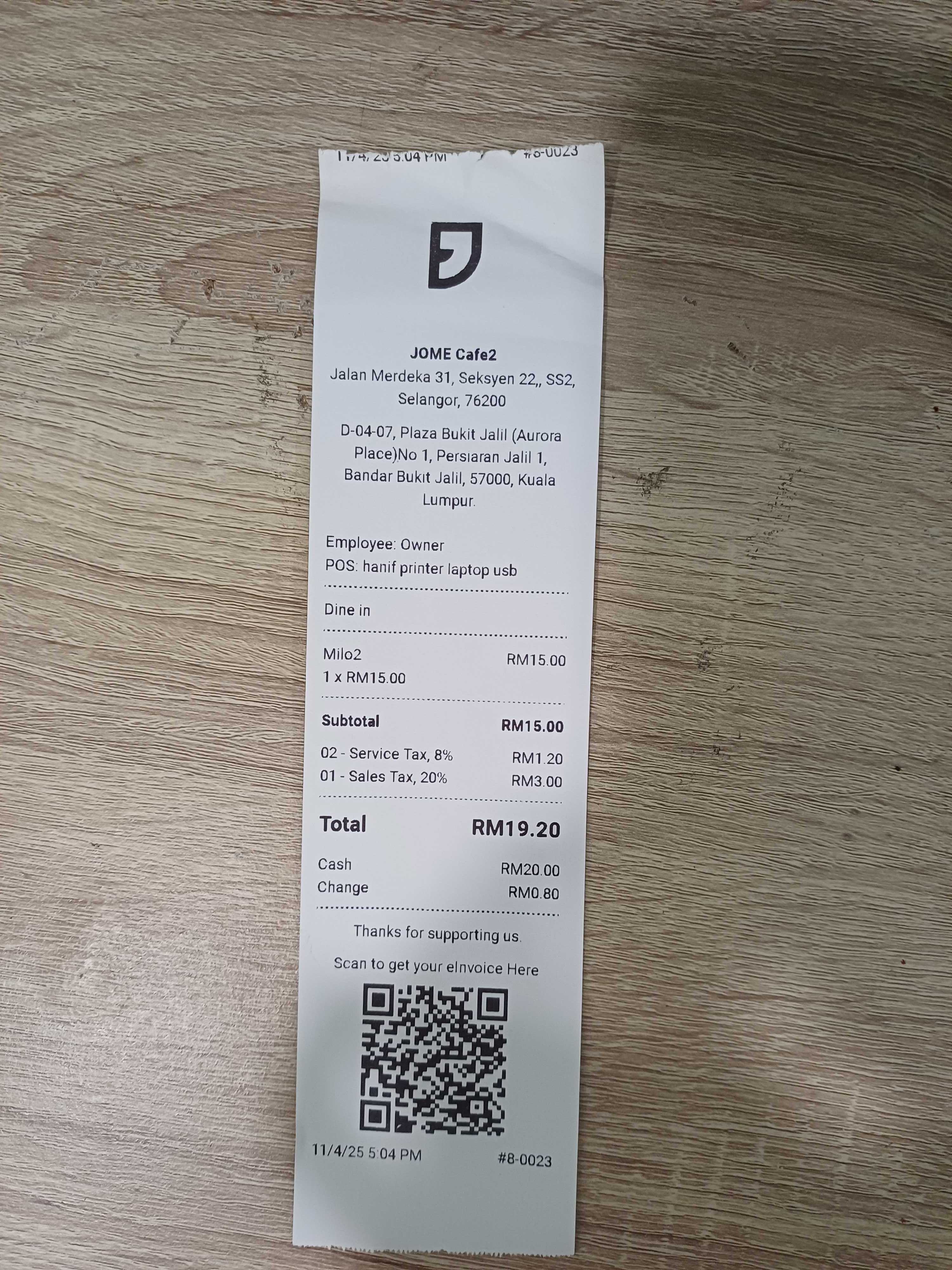
3. QR printed on the receipt

Step 1: Enable e-invoice in Jomeinvoice

Please refer to the guideline

<scalar-page-link item="[object Object]" uid="slJ_Rqm12Dn7SWOn7lDwO" title="Steps to enable e-invoice features" type="Page" icon="[object Object]" description="" show="true" yjsreference="xLBnxCh8VglHcDtwTLIs1" backgroundimage="" ismdx="false" data-link-title="Steps to enable e-invoice features"></scalar-page-link>

Step 2: Navigate to Loyverse

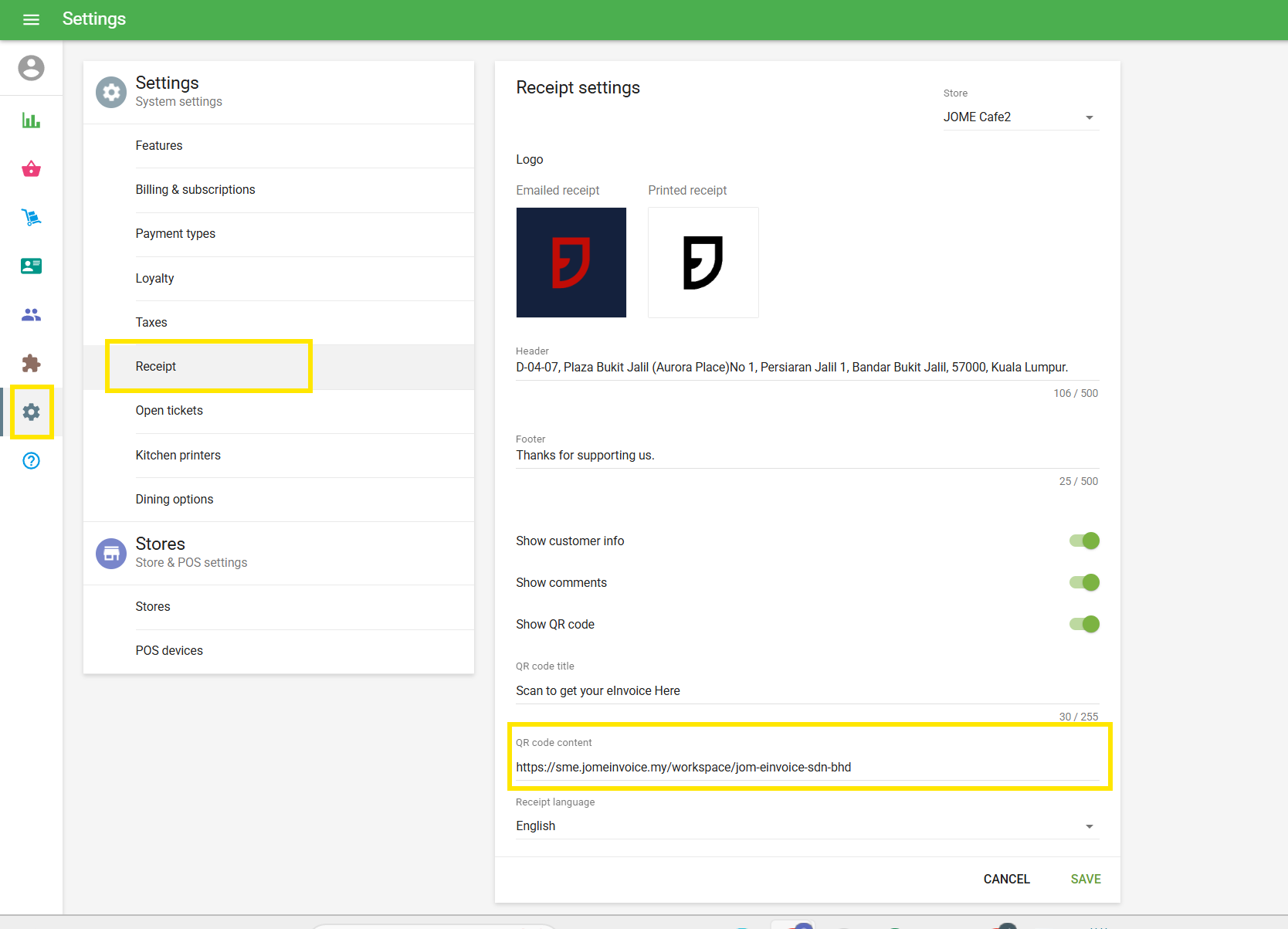
Go to Settings > Receipt > and add your Jome workspace URL in the QR code content > then click save

A QR code will be displayed on the printed receipt ⬇️

Alternatively after every purchase, you can share your customer a QR code to Request e-Invoice


When your customer scan the QR code, it will direct your customer to Jom e-Invoice request e-Invoice page.

Learn what happens behind the scenes after your customer requests an e-Invoice ⬇️

<scalar-page-link item="[object Object]" uid="tkq3IN6ceneVdZvM9ma0V" title="Behind the Scenes: After an E-Invoice Request" type="Page" icon="[object Object]" description="" show="true" yjsreference="pL4QaUd4mddV5_YS5b3cB" backgroundimage="" ismdx="false" data-link-title="Behind the Scenes: After an E-Invoice Request"></scalar-page-link><scalar-page-link item="[object Object]" uid="rjaM50_li2ksB5WXRftuu" title="View E-Invoice Requests" type="Page" icon="[object Object]" description="" show="true" yjsreference="4sl0LrMD2P4Np-wKP6JLM" backgroundimage="" ismdx="false" data-link-title="View E-Invoice Requests"></scalar-page-link>