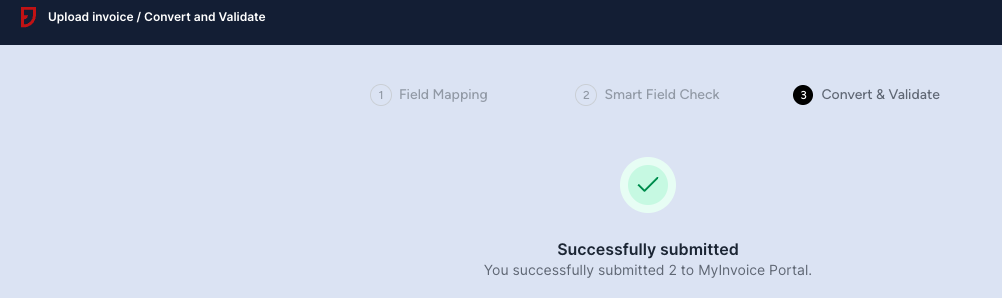
3. Upload E-Invoice
Learn how to upload your Sales or Self-billed e-invoices on our portal in these quick and easy steps! These steps apply to all e-invoice types (invoice, credit note, debit note, and refund note)
Step 1: On your homepage, go to Sales or Self-billed and click your respective e-invoice type
-
Invoices
-
Credit Notes
-
Debit Notes
-
Refund Notes
Step 2: At the top, click to upload or drag your csv file

Step 3: You will be redirected to the Field Mapping page
- Double check that the number of lines detected matches number of rows in your csv file.

Step 4: Complete the Field Mapping step as per the table below.
| Field name in JomeInvoice | Column name in Quickbooks file |
|---|---|
| Buyer’s Name | Name |
| e-Invoice Type | e-Invoice Type |
| e-Invoice Code / Number | Num |
| Orignal e-Invoice Reference Number | Num |
| e-Invoice Date | Date |
| Invoice Currency Code | Currency |
| Currency Exchange Rate | Exchange Rate |
| Classification | Classification |
| Malaysia Standard Industrial Classification (MSIC) Codes | Malaysia Standard Industrial Classification (MSIC) Codes |
| Description of Product or Service | Item Description |
| Unit Price | U/M |
| Tax Type | Tax Type |
| Tax Rate | Tax Rate |
| Tax Amount | Sales Tax Amount |
| Details of Tax Exemption | Details of Tax Exemption |
| Amount Exempted from Tax | Amount Exempted from Tax |
| Subtotal | Subtotal |
| Total Excluding Tax (line item) | Total Excluding Tax (line item) |
| Total Excluding Tax (invoice level) | Total Excluding Tax (invoice level) |
| Total Tax Amount | Total Tax Amount |
| Total Including Tax | Total Including Tax |
| Total Payable Amount | Total Payable Amount |
| Quantity | Qty |
Step 5: Next, click Proceed. Choose Non-Consolidated or Consolidated e-invoice to process the file
To learn more about non-consolidated and consolidated ⬇️
Consolidation vs Non-Consolidation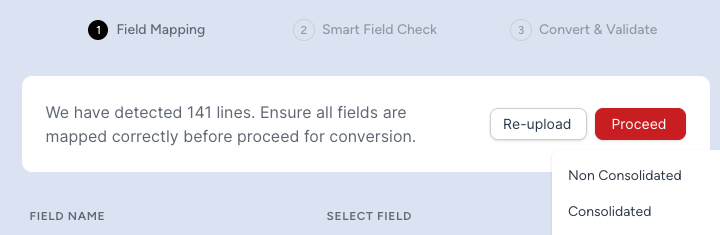
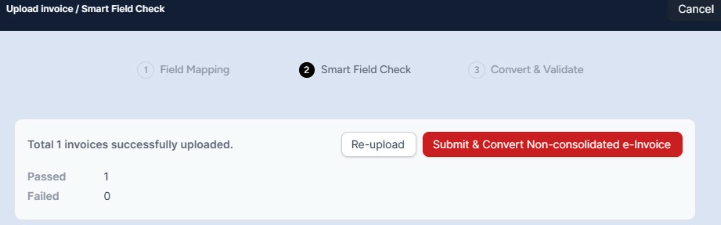
Step 6: You will be redirected to the Smart Field Check page
-
Here is where you can see if there are any errors in your csv file
-
Otherwise, you can continue to click
Submitin order to submit to LHDN
Step 7: Finally, you are done! Our portal will automatically update your e-invoice statuses within a few minutes.