Delete Invoice/Notes
Let’s learn how to delete your sales and self-billed invoice/notes
Note: This only applies if you have not submitted them to LHDN
On this page, we will cover
-
How to delete a single invoice/note
-
How to delete multiple invoices/notes at a time
-
How to delete consolidated draft invoices/notes
Deleting Individually
Step 1: Locate the invoice/note and then click View

Step 2: Click the 3 dots button on the right hand corner, and click Delete Invoice

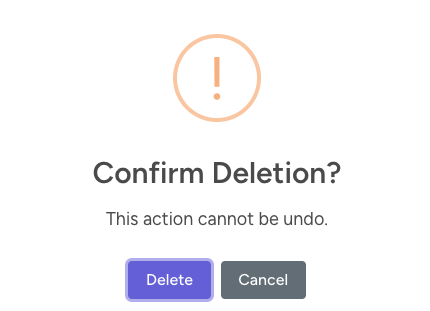
Step 3: Click Delete to confirm deletion and you’re done!
Deleting by Bulk
Step 1: Go to your respective Sales or Self-billed channel (i.e. Create/Upload/SFTP/API)
Step 2: Click Bulk Action button and Delete Invoices

Step 3: Fill in the information in order to select the relevant invoices
-
Date Period
-
Issued Date: Invoice date
-
Created Date: When the invoice is created/uploaded to Jom eInvoice
-
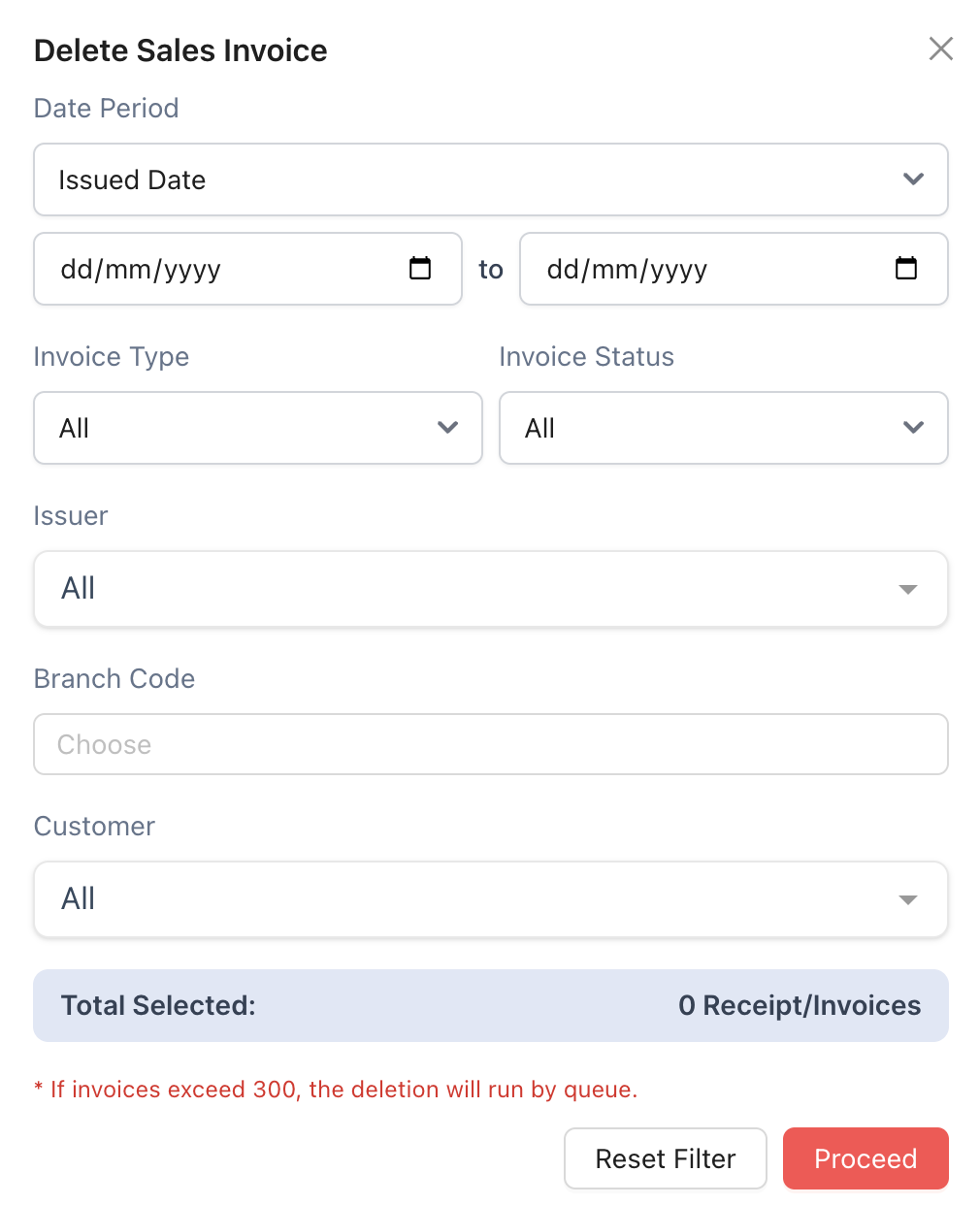
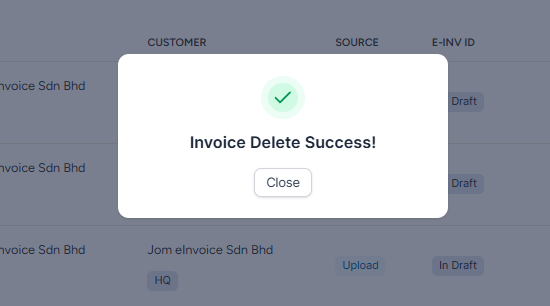
Step 4: Click Proceed and you’re done!
Deleting Consolidated
Note: This only applies to Consolidated Draft invoices
Step 1: Go to your respective Sales or Self-billed channel (i.e. Create/Upload/SFTP/API)
Step 2: Click Consolidation Log to access your consolidations

Step 3: Click Ready to see the list of drafts

Step 4: Locate the relevant consolidated draft invoice and click View. You will be redirected to a new tab

Step 5: To delete this invoice, click Cancel and you’re done!

